HIBIIRO
How to Create a Fire and Smoke Explosion Effect with Particles in Blender
Introduction
In this tutorial, we will create a fire-and-smoke explosion effect in Blender by driving a Mantaflow fluid simulation from a particle emitter.

1. Adding the Particle Emitter
Add a Plane mesh and attach a new Particle System (`Emitter` type).

Particle Settings
Adjust the following emitter parameters so the particles burst outward in a quick flash:

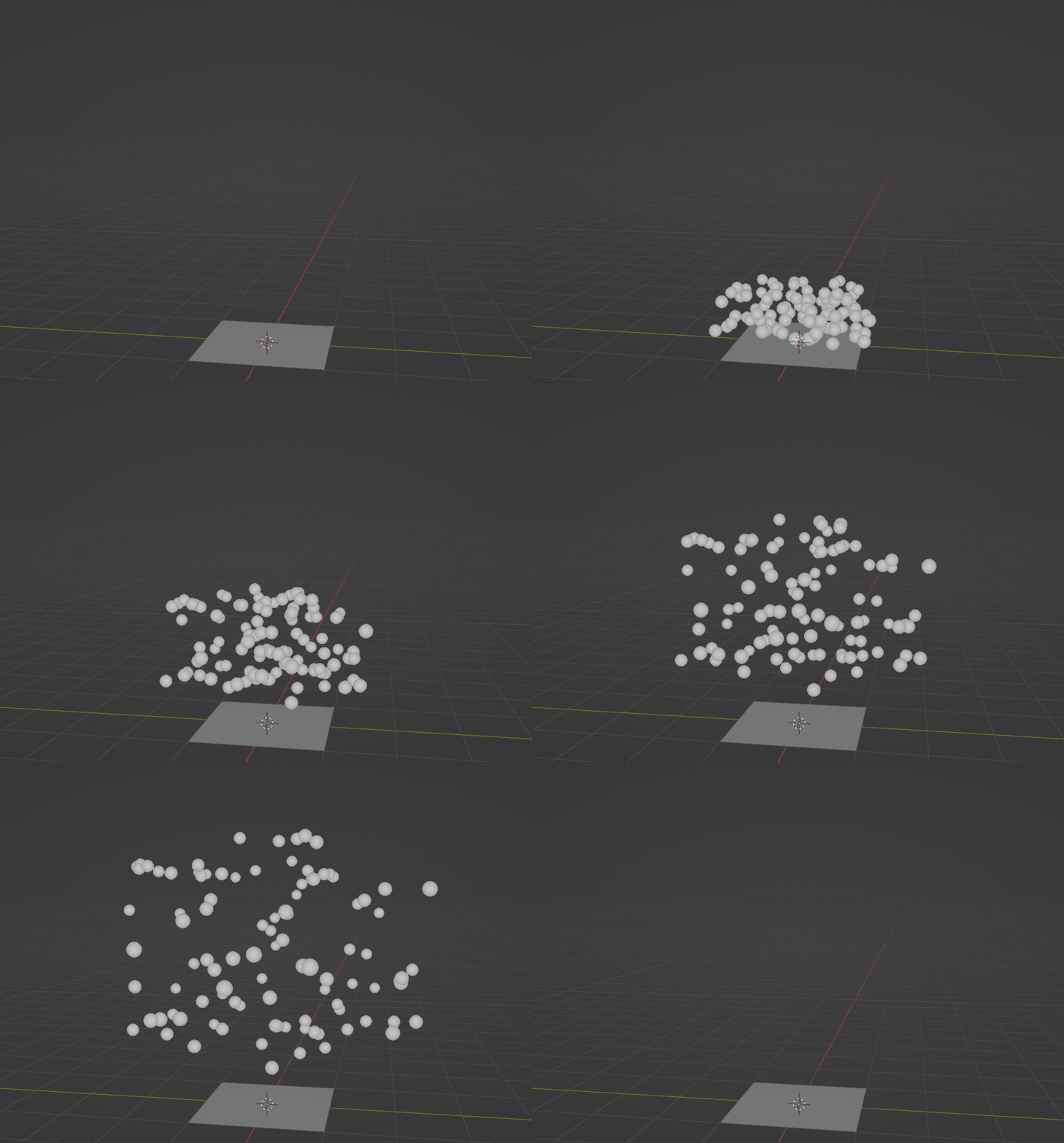
To hide the emitter plane in final renders while keeping it clickable in the 3D Viewport, uncheck Render → Show Emitter:

2. Setting Up the Fluid Simulation (Domain & Flow)
Adding the Fluid Domain
Add a Cube large enough to enclose the entire particle burst (resize in Edit Mode or apply scale with `Ctrl + A → Scale`), enable Fluid in Physics Properties, and set Type to Domain (`Gas`):


Adding the Fluid Flow
Select the particle emitter plane, enable Fluid, and set Type to Flow. Set Flow Type to Fire + Smoke, Flow Behavior to Inflow, and Flow Source to Particle System (selecting your particle system):


Baking the Domain
On the Domain cube, set the Cache End Frame, switch the Cache Type to Modular (or All), adjust Resolution Divisions to suit your hardware, and click Bake Data:


Once the domain data is baked, the explosion should look like this:
3. Volume Shader & Render Settings
Here is the World background setup (using a green screen backdrop for keying) and the Principled Volume shader node tree assigned to the Domain cube to make the flames glow brightly:


Lower the Volumetrics → Tile Size in Render Properties for sharper volumetric detail, and render out the animation:
