HIBIIRO
How to Use the “Duplicate Elements” Node in Blender Geometry Nodes
Introduction
Here is a practical visual guide to the Duplicate Elements node in Blender Geometry Nodes (official manual reference: Duplicate Elements Node).
Environment
Blender 3.5.1
How to Use Duplicate Elements
1. Duplicating Instances
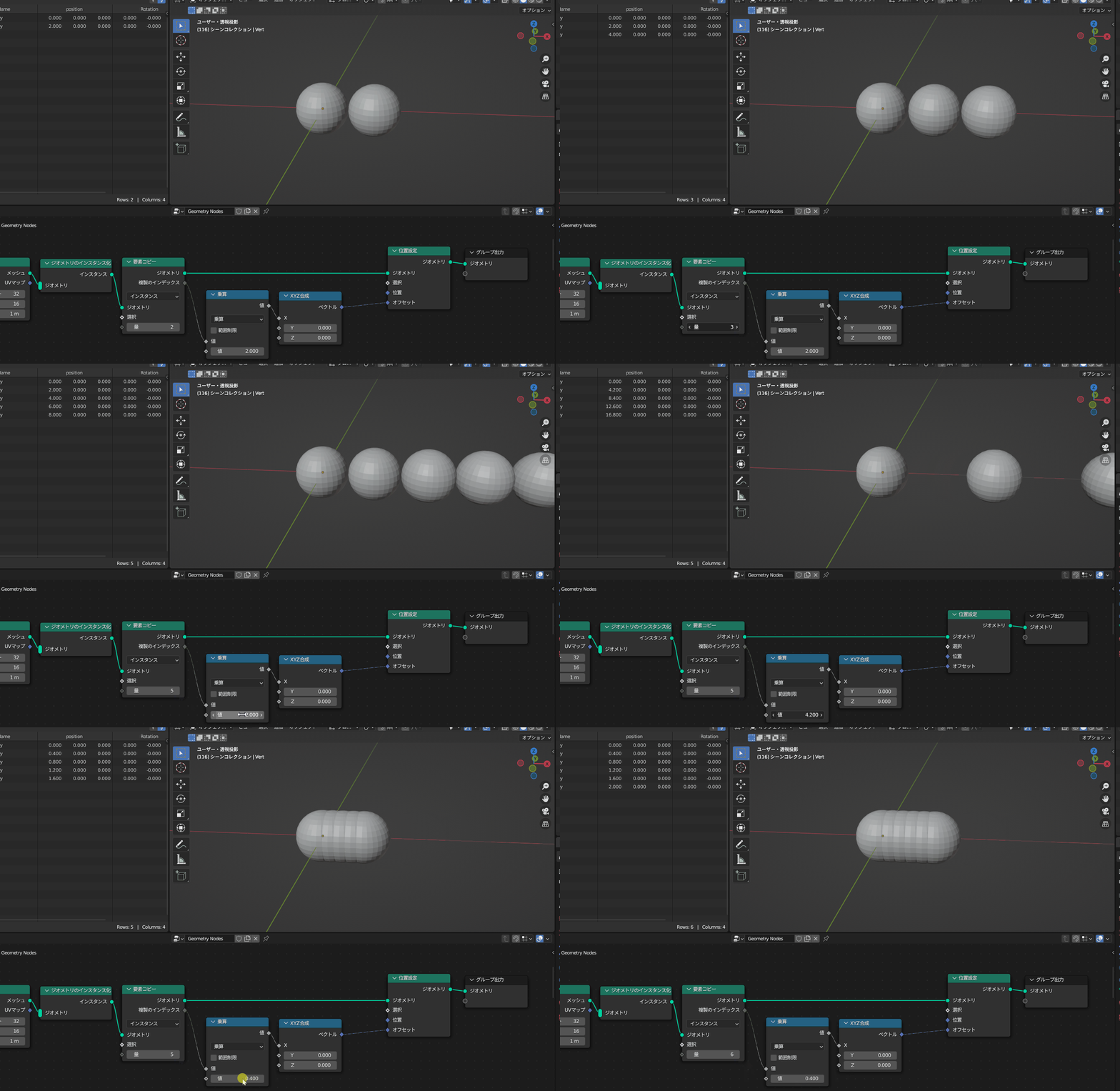
When using Duplicate Elements, the input geometry must match the selected domain. To duplicate instances, first convert your mesh into an instance with Geometry to Instance, then connect it to Duplicate Elements (set to Instance):

Because all copies spawn at the exact same location, connect a Set Position node and use the Duplicate Index output (multiplied by a spacing value) as the offset—creating an array-modifier effect:

2. Duplicating Faces
To duplicate individual mesh faces instead of whole instances, remove Geometry to Instance and set the Duplicate Elements domain to Face:

While the result looks similar at first glance, adding a Scale Elements node clearly shows the difference between scaling individual duplicated faces vs. scaling whole instances:


3. Points, Edges, and Splines
The same workflow applies to the remaining domains: Point, Edge, and Spline.


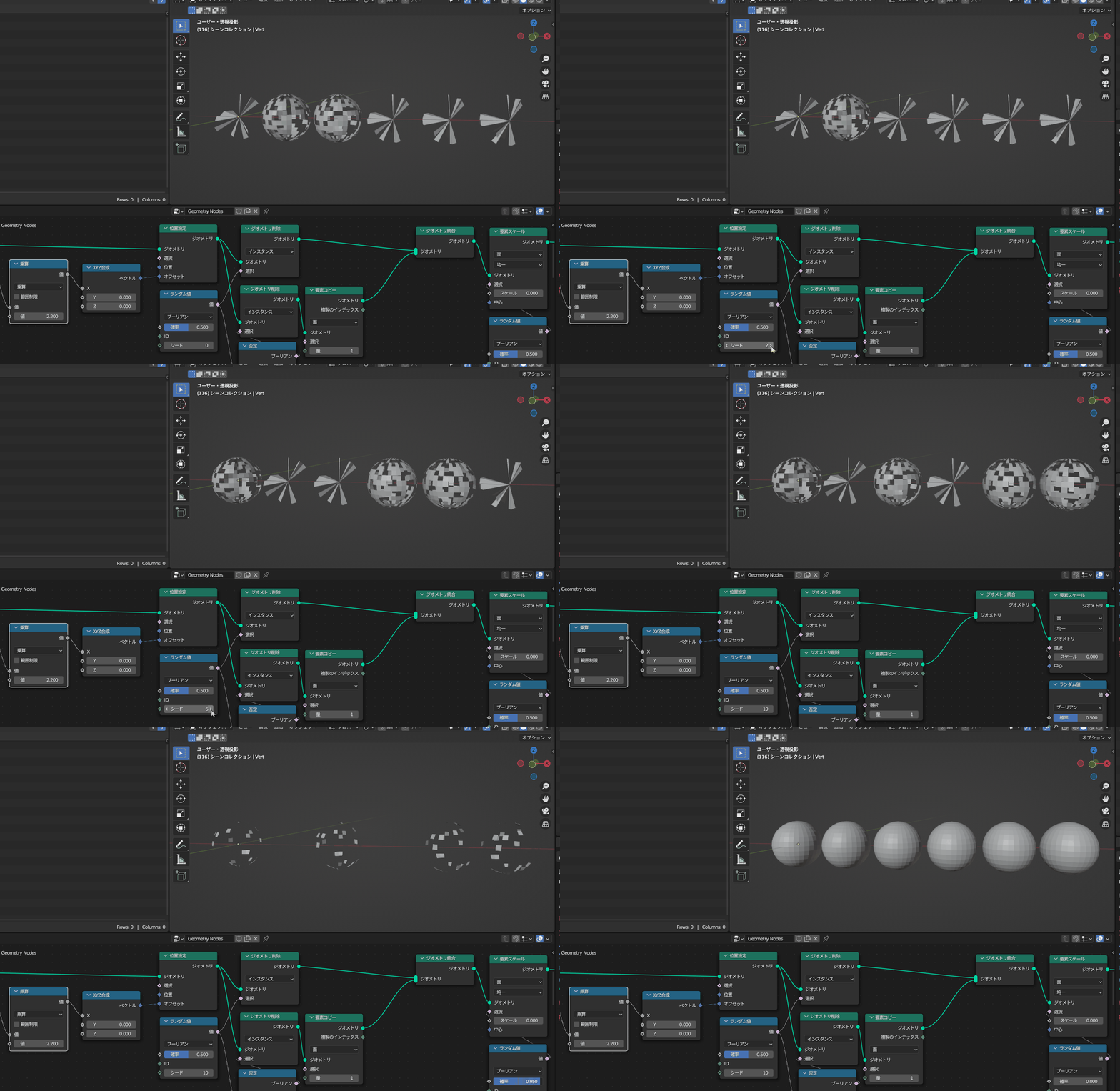
Bonus: Chaining Multiple Duplicate Elements Nodes
You can chain two Duplicate Elements nodes with different domains—for example, duplicating whole Instances first, realizing them with Realize Instances, and then duplicating individual Faces on each copy: